
This one took me a while to wrap my head around, so I'll walk through it the way it actually made sense to me.
Why This Matters in the Industry
Before getting into the technical side, I want to talk about why state management is something every cloud engineer needs to understand — not just Terraform users.
In most companies, infrastructure isn't managed by one person on one laptop. Multiple engineers work on the same cloud environment. If state is just a file sitting locally, there's no way to safely collaborate — whoever runs terraform apply last essentially "wins," and the rest of the team is working with a stale picture of what's actually deployed on the cloud.
Beyond teams, state drift is a real operational risk that you would not like to have. If someone makes a manual change in the AWS console and state doesn't reflect it, the next terraform apply could overwrite or conflict with that change. Companies have had production incidents from exactly this — infrastructure changes that Terraform didn't know about getting wiped out on the next deploy.
Remote state with locking is the standard for any team doing this seriously. Understanding it now means I won't build bad habits.
What Is Terraform State?
When I run terraform apply, Terraform creates a file called terraform.tfstate. I knew it existed but hadn't really looked at it detailly to really understand why it was there and what I kept under it.
It's a JSON file that maps every resource in my *.tf files to the real thing in AWS. So when I write:
resource "aws_lb" "web" {
  name = "web-app-dev-alb"
  ...
}
The state file stores the actual AWS ARN, DNS name, ID, and all the attributes that came back from AWS after it was created. Something like this:
{
  "resources": [
    {
      "type": "aws_lb",
      "name": "web",
      "instances": [
        {
          "attributes": {
            "id": "arn:aws:elasticloadbalancing:us-east-1:...",
            "dns_name": "web-app-dev-alb-70346136.us-east-1.elb.amazonaws.com",
            "name": "web-app-dev-alb"
          }
        }
      ]
    }
  ]
}
Terraform uses this on every plan — it reads the state file, compares it to what I have in my .tf files, and calls the AWS API to check the current real state. The diff between those three things is what shows up in the plan output.
Without the state file, Terraform has no memory. It can't tell what it previously created. It would try to create everything from scratch. For this reason if you create or update things manually on the AWS Console, Terraform will not have that reflected on its state file and that would lead to clashes.
The Problem with Local State
By default the state file sits in the same folder as my Terraform code — just a file on my laptop. That's fine for solo learning, but it has real problems:
No sharing. If someone else clones the repo and runs terraform apply, they don't have the state file. Terraform thinks nothing has been deployed and tries to create everything again.
No locking. If two people run terraform apply at the same time, both are writing to state simultaneously. That's a race condition against real cloud infrastructure.
Easy to lose. Delete the directory, lose the laptop, corrupt the file during a failed apply — and Terraform loses track of everything it created. Getting it back means manually importing every resource one by one.
The Solution: Remote State with S3 and DynamoDB
The fix is to store state in a shared location that everyone on the team can access. In AWS, the standard setup is S3 for storage and DynamoDB for locking.
First I need to create the S3 bucket and DynamoDB table. I do this as its own small Terraform config before anything else:
# S3 bucket to store state files
resource "aws_s3_bucket" "terraform_state" {
  bucket = "my-terraform-state-bucket"

  lifecycle {
    prevent_destroy = true  # prevent accidental deletion of the bucket itself
  }
}

# Versioning keeps a history of every state change —
# useful if I need to roll back after something goes wrong
resource "aws_s3_bucket_versioning" "enabled" {
  bucket = aws_s3_bucket.terraform_state.id
  versioning_configuration {
    status = "Enabled"
  }
}

# State files can contain sensitive values, so encrypt them at rest
resource "aws_s3_bucket_server_side_encryption_configuration" "default" {
  bucket = aws_s3_bucket.terraform_state.id

  rule {
    apply_server_side_encryption_by_default {
      sse_algorithm = "AES256"
    }
  }
}

# State should never be publicly accessible
resource "aws_s3_bucket_public_access_block" "public_access" {
  bucket                  = aws_s3_bucket.terraform_state.id
  block_public_acls       = true
  block_public_policy     = true
  ignore_public_acls      = true
  restrict_public_buckets = true
}

# DynamoDB table for state locking
# LockID is required — that's the key Terraform uses
resource "aws_dynamodb_table" "terraform_locks" {
  name         = "terraform-state-locks"
  billing_mode = "PAY_PER_REQUEST"
  hash_key     = "LockID"

  attribute {
    name = "LockID"
    type = "S"
  }
}
Once that's deployed, I configure Terraform to use it via a backend block inside the terraform configuration block:
terraform {
  backend "s3" {
    bucket         = "my-terraform-state-bucket"
    key            = "day5/web-app/terraform.tfstate"
    region         = "us-east-1"
    dynamodb_table = "terraform-state-locks"
    encrypt        = true
  }
}
The key is the path inside the bucket. I organize it by project so multiple configs can share the same bucket:
my-terraform-state-bucket/
├── day5/web-app/terraform.tfstate
├── day5/networking/terraform.tfstate
└── prod/web-app/terraform.tfstate
After adding this, run terraform init and Terraform will ask if you want to migrate local state to S3. Say yes. From that point on, state is shared.
When someone runs terraform apply, Terraform writes a lock to DynamoDB first. If another apply is already running, they'll see:
Error: Error acquiring the state lock
Lock Info:
  Who:     mohamed@laptop
  Created: 2026-04-13 09:15:00
Once the first apply finishes, the lock releases and the next one can proceed.
Scaling the Cluster
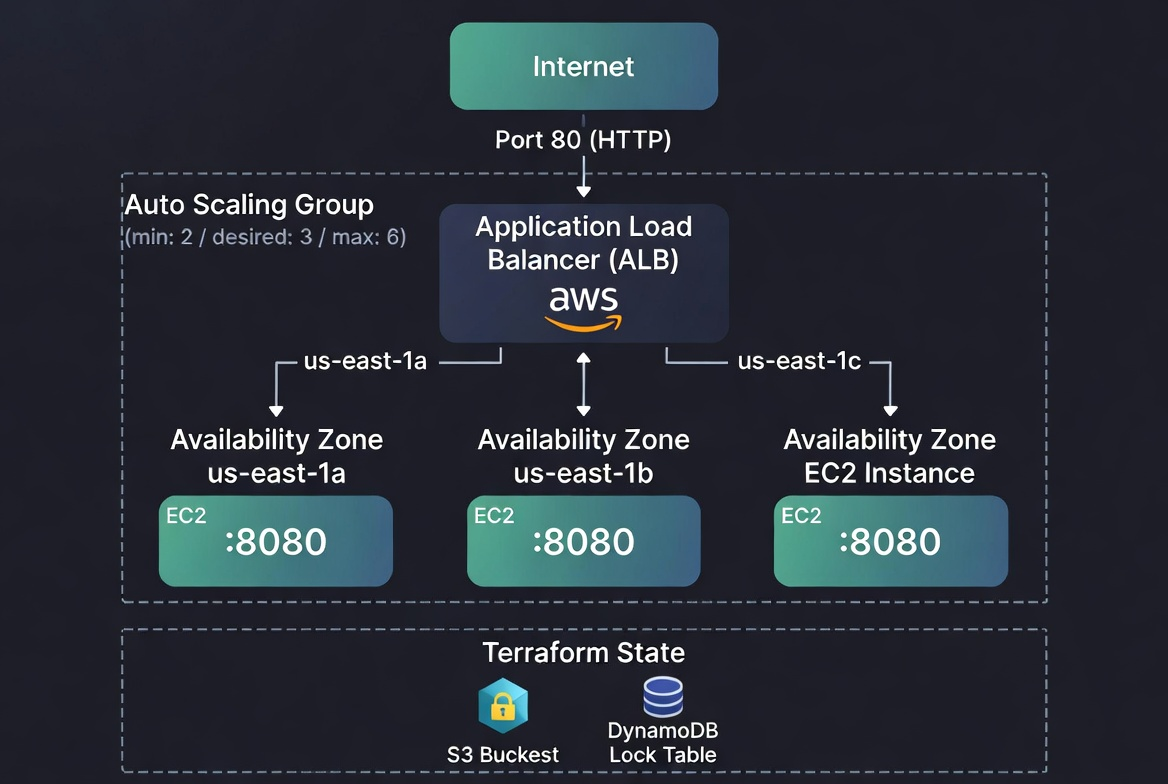
The other activity today was scaling the web server cluster from Day 4. This part was actually pretty straightforward once the state was in good shape — it's really just adjusting numbers in the ASG:
resource "aws_autoscaling_group" "web" {
  min_size         = 2
  max_size         = 6
  desired_capacity = 3

  launch_template {
    id      = aws_launch_template.web.id
    version = "$Latest"
  }

  vpc_zone_identifier = data.aws_subnets.default.ids
  target_group_arns   = [aws_lb_target_group.web.arn]
  health_check_type   = "ELB"

  tag {
    key                 = "Name"
    value               = "${local.name_prefix}-web"
    propagate_at_launch = true
  }
}
Changed max_size from 4 to 6 and bumped desired_capacity to 3. Run terraform apply, the ASG launches the extra instance, and the ALB starts routing traffic to it automatically. No manual intervention needed.
Terraform Blocks I Learned Today
A few block types that are worth mentioning is terraform block:
terraform block — configures Terraform itself. This is where you pin the Terraform version, required providers, and set the backend. It's separate from resource configuration:
terraform {
  required_version = ">= 1.0"

  required_providers {
    aws = {
      source  = "hashicorp/aws"
      version = "~> 5.0"
    }
  }
}
data block — reads existing resources without creating or managing them. I've been using this to fetch the default VPC and subnets. Terraform doesn't touch what's in a data block, it just reads it:
data "aws_vpc" "default" {
  default = true
}
output block — prints values after terraform apply and exposes them to other configs. I've been using outputs mainly to get the ALB DNS name, but outputs are also how modules pass values back to whoever is calling them:
output "alb_dns_name" {
  value       = aws_lb.web.dns_name
  description = "The DNS name of the load balancer"
}
State Limitations Worth Knowing
A few things from the reading that are worth keeping in mind:
Sensitive values end up in state. If I pass a database password as a resource argument, it lands in the state file. Encryption at rest helps, but ideally sensitive values should come from AWS Secrets Manager rather than being passed directly through Terraform.
Don't manually edit the state file. It's just JSON and looks editable, but manual edits break things in ways that are hard to debug. Terraform has commands for state operations — terraform state mv, terraform state rm, terraform import — use those commands instead.
State can get out of sync. If someone makes a change directly in the AWS console, state no longer matches reality. Running terraform plan will show the drift. terraform refresh can pull the real current state back in, but the better practice is to avoid manual changes on the server altogether.
Architecture Diagram
Where I'm At
While learning Terraform, state management is a concept you need to understand very well. Now that we went through the main concenpts and understand it, a lot of things that seemed like Terraform quirks will now make sense — why terraform init needs to run first, why destroying and recreating the same config doesn't cause conflicts, why the plan is so accurate.
Remote state is something I'll set up from the beginning on any project going forward as it come with a lot of advantages. It's not a lot of extra work, and the alternative — local state in a team setting — is asking for problems.
This post is part of a 30-day Terraform learning journey.
💬 Comments
No comments yet. Be the first to share your thoughts!
Leave a Comment