
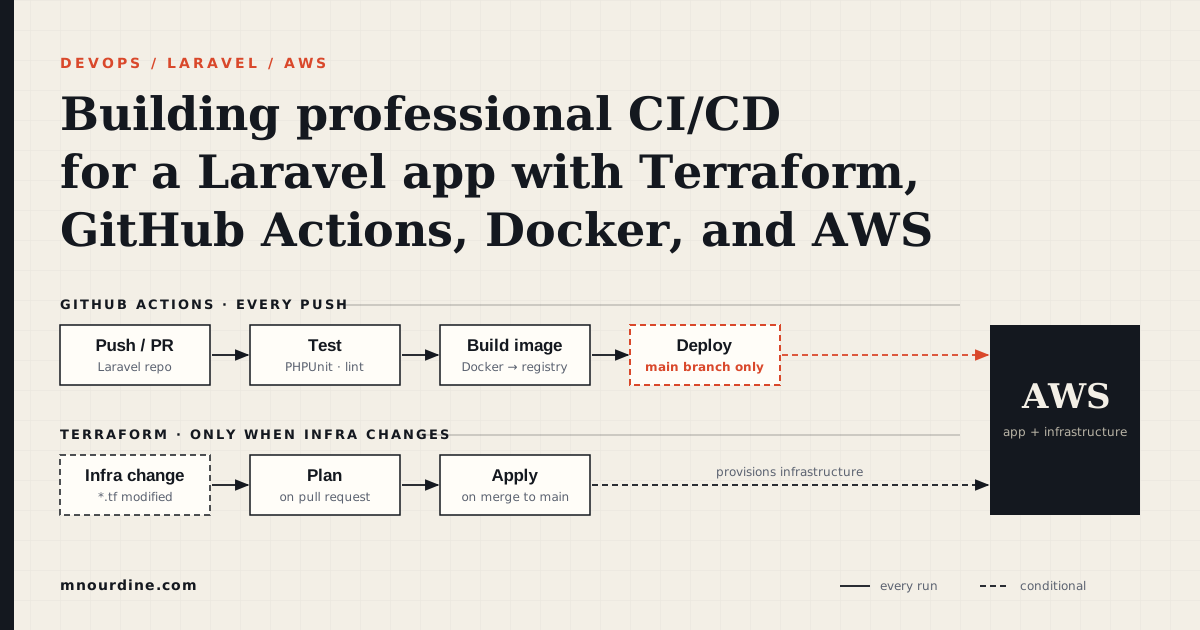
A common mistake when adopting Terraform is treating infrastructure changes and application code changes as a single pipeline. They are not — they have different cadences, different risk profiles, and different rollback strategies.
Infrastructure changes (adding a new RDS instance, changing an ASG scaling policy, updating a security group) are infrequent, high-risk, and slow. Provisioning a new RDS instance takes 10–15 minutes. A bad change to a security group can take down an entire environment. These changes go through terraform plan → review → apply with careful human review.
Application code changes (new FastAPI endpoint, bug fix, dependency update) are frequent, lower-risk, and fast. A new Docker image takes 3 minutes to build. A bad deployment rolls back in under 60 seconds via the instance refresh or Kubernetes rolling update. These changes go through a CI/CD pipeline that runs tests and deploys automatically.
The two pipelines share a Terraform variable — the image tag or AMI ID — but nothing else. The infrastructure pipeline owns the cluster; the application pipeline owns what runs on it.
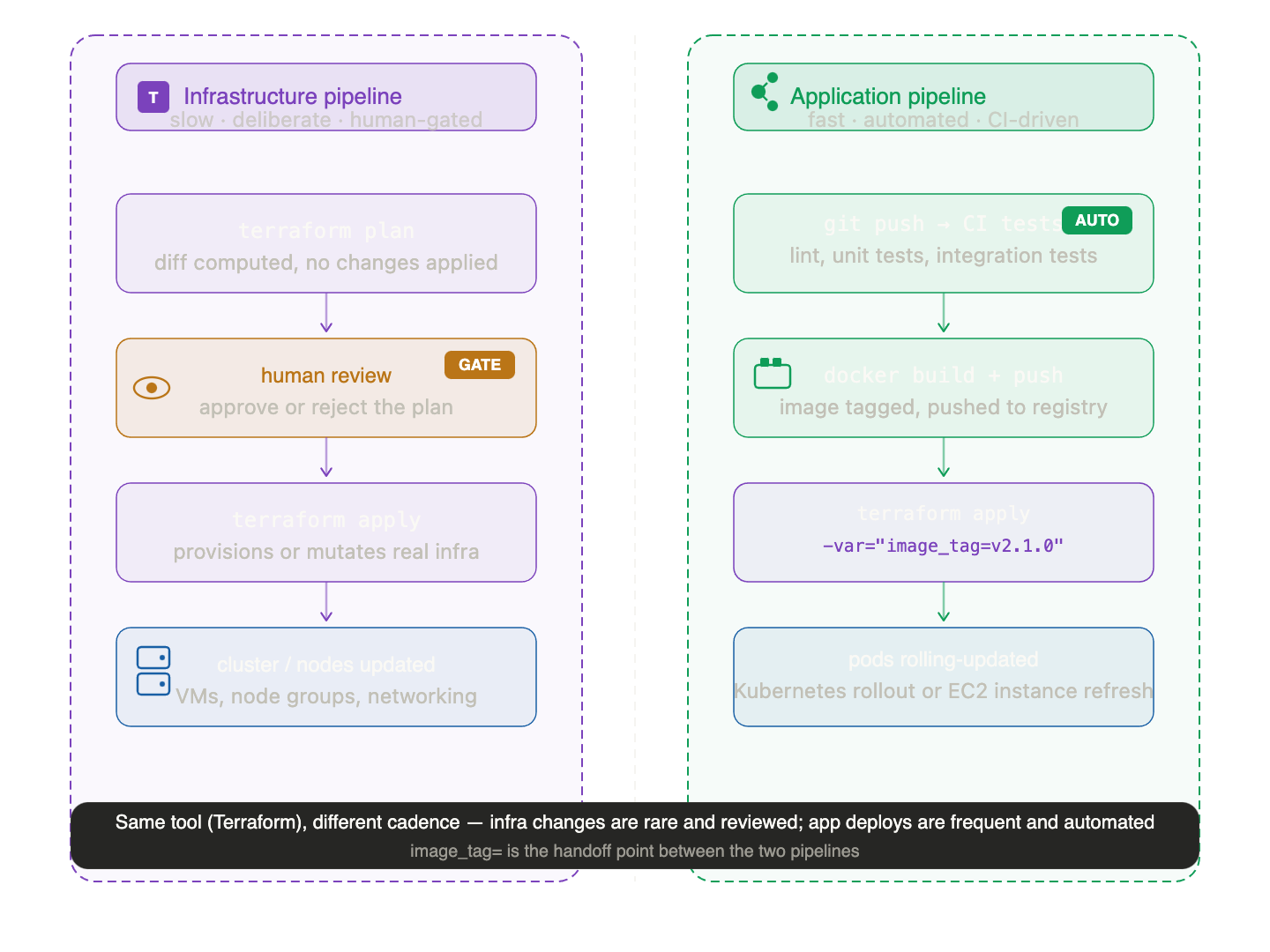
The infrastructure pipeline runs weekly or on-demand. The application pipeline runs on every merge to main.
The 7-Step Deployment Workflow
Chapter 10 of Terraform: Up & Running defines a seven-step process that takes a code change safely from a developer's branch to production. Applied to the FastAPI app:
Step 1: Make changes in a feature branch
git checkout -b feature/add-search-endpoint
# ... edit app/main.py, add GET /items/search?q=...
git push origin feature/add-search-endpoint
No infrastructure changes. No Terraform. The developer is working on application code only.
Step 2: Run tests automatically on the PR
When the pull request is opened, CI triggers:
# .github/workflows/app-ci.yml
on:
  pull_request:
    branches: [main]

jobs:
  test:
    runs-on: ubuntu-latest
    steps:
      - uses: actions/checkout@v4
      - name: Run unit tests
        run: pytest tests/unit/ -v
      - name: Run integration tests
        run: pytest tests/integration/ -v --cov=app
The PR cannot merge if tests fail. This is the gate between "code written" and "code reviewed."
Step 3: Code review and merge
A second engineer reviews the diff: the new endpoint, the tests covering it, the updated requirements.txt if a dependency changed. The plan output from any infrastructure changes (there are none here) would also appear as a PR comment.
After approval, the PR merges to main.
Step 4: Build and publish the artifact
After merge, CI builds a new Docker image and pushes it to the container registry:
# .github/workflows/app-release.yml
on:
  push:
    branches: [main]

jobs:
  build-and-push:
    runs-on: ubuntu-latest
    steps:
      - uses: actions/checkout@v4

      - name: Log in to GitHub Container Registry
        run: echo ${{ secrets.GHCR_PAT }} | docker login ghcr.io -u mohamednourdine --password-stdin

      - name: Build image
        run: |
          IMAGE_TAG=ghcr.io/mohamednourdine/fastapi-items:${{ github.sha }}
          docker build -t $IMAGE_TAG .
          docker push $IMAGE_TAG
          echo "IMAGE_TAG=$IMAGE_TAG" >> $GITHUB_ENV
The image tag is the git commit SHA — not latest. Every image is uniquely identified and traceable to the exact commit that produced it.
Step 5: Deploy to staging
With the image built, update the staging environment:
  deploy-staging:
    needs: build-and-push
    runs-on: ubuntu-latest
    environment: staging    # GitHub environment with protection rules
    steps:
      - name: Deploy to staging
        run: |
          terraform -chdir=environments/staging apply -auto-approve \
            -var="image_tag=${{ github.sha }}"
Or, with HCP Terraform VCS integration: the merge to main triggers the staging workspace run automatically. The image_tag is updated via the HCP Terraform API before triggering the run:
curl -s \
  --header "Authorization: Bearer $TF_API_TOKEN" \
  --header "Content-Type: application/vnd.api+json" \
  --request PATCH \
  --data '{
    "data": {
      "type": "vars",
      "attributes": {
        "value": "'${{ github.sha }}'"
      }
    }
  }' \
  "https://app.terraform.io/api/v2/workspaces/$STAGING_WORKSPACE_ID/vars/$IMAGE_TAG_VAR_ID"
Step 6: Run smoke tests against staging
After the staging deploy completes, run automated smoke tests against the real staging environment:
  smoke-test-staging:
    needs: deploy-staging
    runs-on: ubuntu-latest
    steps:
      - name: Wait for staging health check
        run: |
          STAGING_URL=$(terraform -chdir=environments/staging output -raw alb_dns_name)
          for i in $(seq 1 30); do
            STATUS=$(curl -s -o /dev/null -w "%{http_code}" "http://$STAGING_URL/health")
            if [ "$STATUS" = "200" ]; then
              echo "Staging is healthy"
              exit 0
            fi
            echo "Attempt $i: status $STATUS, retrying..."
            sleep 10
          done
          echo "Staging health check failed after 5 minutes"
          exit 1

      - name: Run API smoke tests
        run: pytest tests/smoke/ --base-url=http://$STAGING_URL
The smoke tests check the endpoints that matter most: /health, GET /items, POST /items. They do not test every edge case — that is what the unit and integration tests in steps 1–2 covered.
Step 7: Deploy to production with approval gate
After staging smoke tests pass, production deployment requires human approval:
  deploy-production:
    needs: smoke-test-staging
    runs-on: ubuntu-latest
    environment: production   # GitHub environment with required reviewers
    steps:
      - name: Deploy to production
        run: |
          terraform -chdir=environments/prod apply -auto-approve \
            -var="image_tag=${{ github.sha }}"

      - name: Run production smoke tests
        run: |
          PROD_URL=$(terraform -chdir=environments/prod output -raw alb_dns_name)
          pytest tests/smoke/ --base-url=http://$PROD_URL
The GitHub environment: production setting pauses the pipeline and sends a notification to the required reviewers. A senior engineer reviews the staging smoke test results, approves in the GitHub UI, and the production deploy runs.
Secure Variables in HCP Terraform
Every environment has variables that must not appear in logs, version control, or Terraform state. In the FastAPI stack that includes:
- Database credentials (
DB_PASSWORD) - AWS access keys (if not using OIDC)
- GitHub container registry token (
GHCR_PAT) - API keys for external services
HCP Terraform has two types of workspace variables:
| Type | Stored as | Available as | Typical use |
|---|---|---|---|
| Terraform variable | terraform.tfvars equivalent |
var.<name> in HCL |
Module inputs: image_tag, instance_type, min_size |
| Environment variable | Shell environment variable | $VAR_NAME during run |
AWS credentials, provider tokens |
Both types can be marked sensitive. When a variable is sensitive:
- Its value is write-only in the UI — you can update or delete it but never read it back
- It is redacted from all run logs:
[sensitive value] - It is never written to the Terraform state file
Adding sensitive variables via the UI
- Open the workspace in HCP Terraform → Variables tab
- Click + Add variable
- Choose variable type (Terraform or Environment)
- Enter the key and value
- Check Sensitive — this is irreversible
For AWS credentials using assume-role (the pattern from Day 14's multi-account setup):
Environment variable: AWS_ACCESS_KEY_ID        → sensitive ✓
Environment variable: AWS_SECRET_ACCESS_KEY    → sensitive ✓
Environment variable: AWS_ROLE_ARN             → not sensitive (visible in logs is fine)
Environment variable: AWS_REGION               → us-east-1 (not sensitive)
Adding sensitive variables via the API
For automation — rotating credentials on a schedule without touching the UI:
# Update a sensitive workspace variable via the HCP Terraform API
TF_API_TOKEN="your-api-token"
WORKSPACE_ID="ws-abc123"
VAR_ID="var-xyz789"

curl -s \
  --header "Authorization: Bearer $TF_API_TOKEN" \
  --header "Content-Type: application/vnd.api+json" \
  --request PATCH \
  --data "{
    \"data\": {
      \"type\": \"vars\",
      \"id\": \"$VAR_ID\",
      \"attributes\": {
        \"value\": \"$NEW_SECRET_VALUE\",
        \"sensitive\": true
      }
    }
  }" \
  "https://app.terraform.io/api/v2/workspaces/$WORKSPACE_ID/vars/$VAR_ID"
This is how a secrets rotation Lambda or a GitHub Actions workflow can update credentials in HCP Terraform without anyone needing to manually update the UI.
Variable Sets for shared credentials
As covered in Day 19, Variable Sets prevent duplication when multiple workspaces share the same credentials. For the FastAPI multi-region setup:
Variable Set: aws-us-east-1-credentials
  AWS_ACCESS_KEY_ID     = ...  (sensitive)
  AWS_SECRET_ACCESS_KEY = ...  (sensitive)
  AWS_REGION            = us-east-1

Applied to: fastapi-dev, fastapi-staging, fastapi-prod

Variable Set: aws-eu-west-1-credentials
  AWS_ACCESS_KEY_ID     = ...  (sensitive, different key scoped to eu account)
  AWS_SECRET_ACCESS_KEY = ...  (sensitive)
  AWS_REGION            = eu-west-1

Applied to: fastapi-dev-eu, fastapi-prod-eu
Rotating the EU credentials is one operation that propagates to both EU workspaces simultaneously.
VCS Integration
VCS integration connects a GitHub repository directly to an HCP Terraform workspace. When a commit lands on the tracked branch, HCP Terraform automatically queues a run — no CI step needed to trigger terraform apply.
How it works
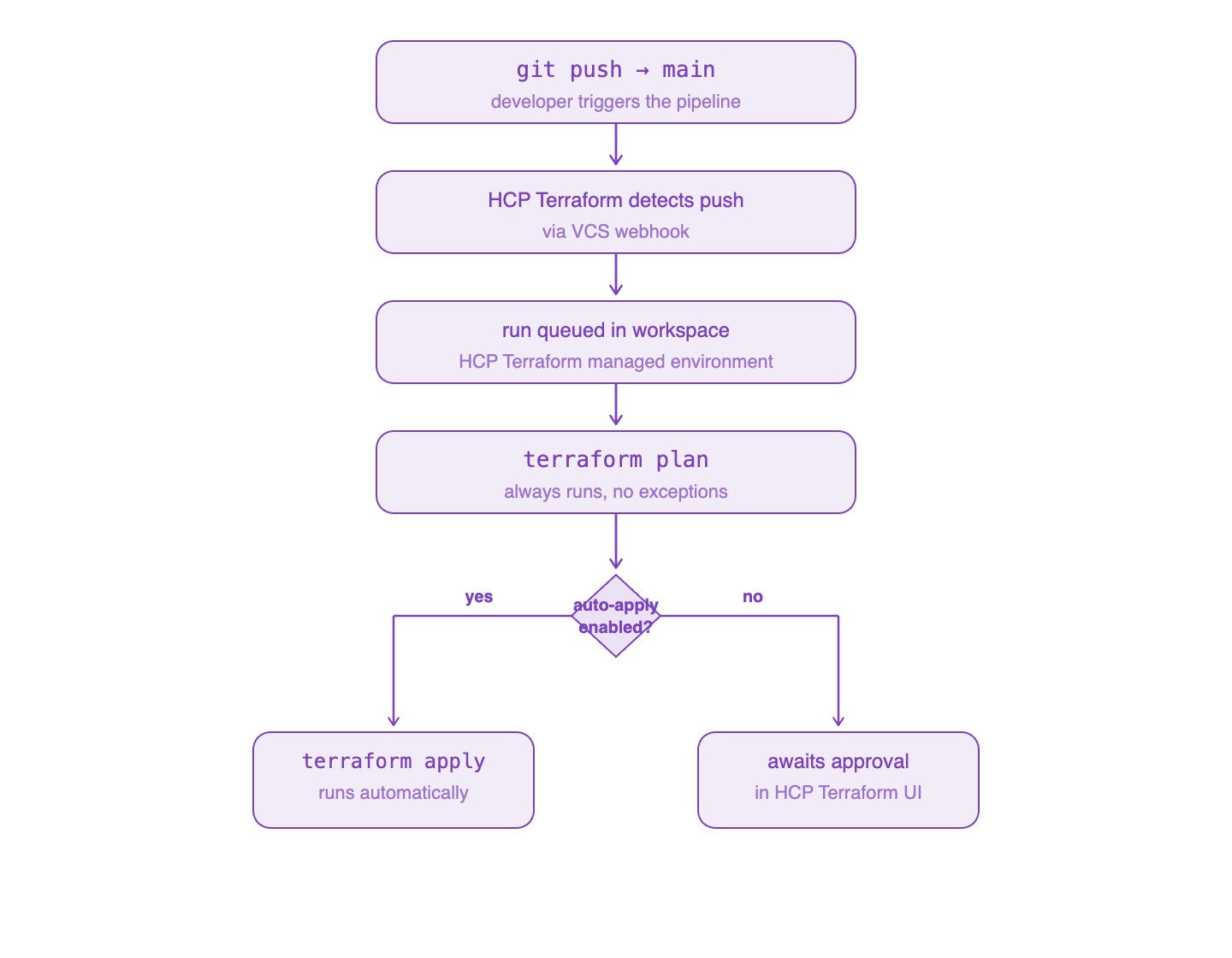
Setting up VCS integration
- In HCP Terraform, go to Settings → Version Control → Connect to VCS
- Authorize the GitHub OAuth app
- In the workspace settings, under Version Control:
- Select the repository:
mohamednourdine/terraform-infra - Set the VCS branch:
main - Set the Terraform working directory:
environments/prod(only this subdirectory triggers a run) - Enable Automatic runs: yes
- Select the repository:
Speculative plans on pull requests
With VCS integration, HCP Terraform posts a speculative plan directly on the GitHub pull request — the same plan that would run if the PR merged, but not applied:
HCP Terraform · 2 minutes ago
Plan: 2 to add, 1 to change, 0 to destroy.
View run in HCP Terraform
The reviewer clicks the link and sees the full plan output — resource attribute changes, new resources, dependency order — without leaving the PR review workflow.
Trigger rules — controlling which paths trigger a run
By default, any push to the tracked branch triggers a run, even if no Terraform files changed. Trigger rules narrow this:
Trigger pattern: environments/prod/**
With this rule, a push that only changes app/main.py does not trigger the fastapi-prod workspace. A push that changes environments/prod/main.tf does.
This is essential for monorepos where application code and infrastructure code live together. Without trigger rules, a Python file change would trigger a Terraform run — slow, wasteful, and confusing.
The Private Module Registry
As the module library grows (networking, alb, asg, rds, iam), other teams need to consume those modules without pulling from a public GitHub URL. The HCP Terraform private registry solves this.
Publishing a module
Publishing requires the repository to follow a naming convention:
terraform-<provider>-<module-name>

Examples:
terraform-aws-networking
terraform-aws-alb
terraform-aws-asg
The repository must have at least one semantic version tag:
git tag v1.0.0
git push origin v1.0.0
Then in HCP Terraform → Registry → Publish → Module:
- Connect to the GitHub repository
mohamednourdine/terraform-aws-asg - HCP Terraform scans the tags and imports all semantic versions
- It reads
variables.tf,outputs.tf, andREADME.mdto generate documentation automatically
Consuming a private module
Once published, the module appears in the private registry at:
app.terraform.io/mohamednourdine-org/asg/aws
Any workspace in the mohamednourdine-org organization can consume it using the registry source format:
module "asg" {
  source  = "app.terraform.io/mohamednourdine-org/asg/aws"
  version = "~> 1.4"

  environment         = var.environment
  subnet_ids          = module.networking.private_subnet_ids
  security_group_id   = module.security_groups.instance_sg_id
  target_group_arn    = module.alb.target_group_arn
  instance_type       = var.instance_type
  min_size            = var.min_size
  max_size            = var.max_size
  user_data           = local.fastapi_user_data
}
The version constraint ~> 1.4 means "any 1.x version >= 1.4, but not 2.0." This is the same constraint syntax as the public registry, with the same upgrade path: terraform init -upgrade resolves a new version within the constraint.
What the private registry provides over public GitHub URLs
| Concern | git::https://github.com/... |
Private Registry |
|---|---|---|
| Access control | GitHub repo visibility | Organization membership in HCP Terraform |
| Auto-generated docs | No | Yes — from variables.tf and outputs.tf |
| Version browsing | Check git tags manually | UI with changelog per version |
| Search | No | Yes — searchable across all org modules |
| Usage tracking | No | Yes — which workspaces use which version |
| No-code provisioning | No | Yes (HCP Terraform Plus feature) |
For a team of 3–4 people sharing 5–6 modules, the private registry is the difference between "ask Alice which version to use" and "check the registry and pick the latest stable."
Module documentation in the registry
The registry renders the module README and generates input/output tables automatically from the Terraform files. This is where terraform-docs (from Day 16) pays off — the auto-generated docs in the README become the module's documentation in the registry, always in sync with the code.
# terraform-aws-asg

Deploys an Auto Scaling Group with a Launch Template, wired to an
existing ALB target group. Supports rolling updates via instance refresh.

## Inputs

| Name | Description | Type | Default | Required |
|---|---|---|---|---|
| environment | Deployment environment name | string | — | yes |
| subnet_ids | Private subnet IDs for ASG instances | list(string) | — | yes |
| ...
The Complete Workflow in Practice
Putting the seven steps, secure variables, VCS integration, and the private registry together:
Developer writes a new FastAPI endpoint
          │
          ▼
git push → PR opens
          │
          ├── GitHub CI: pytest (unit + integration)
          └── HCP Terraform: speculative plan posted as PR comment
                    (no infra changes for this PR → plan shows no changes)
          │
          ▼
Code review approved → merge to main
          │
          ▼
GitHub CI:
  1. docker build + push to ghcr.io (image tagged with commit SHA)
  2. Update image_tag variable in fastapi-staging workspace via HCP Terraform API
  3. HCP Terraform staging workspace auto-applies (auto-apply: enabled)
  4. Smoke tests run against staging ALB
          │
          ▼
Staging healthy → pipeline pauses at production gate
          │
          ▼
Senior engineer reviews staging results → approves in GitHub UI
          │
          ▼
GitHub CI:
  1. Update image_tag variable in fastapi-prod workspace
  2. HCP Terraform prod workspace queues a run (auto-apply: disabled)
  3. Sentinel policy checks run between plan and apply
  4. Apply executes → instance refresh rolls out new pods
  5. Production smoke tests confirm /health returns 200
          │
          ▼
Deployment complete. Run visible in HCP Terraform audit log.
Infrastructure changes follow the same path but go through terraform plan review rather than smoke tests. The key discipline: no one ever runs terraform apply locally against staging or prod. All applies go through HCP Terraform.
Key Terms
| Term | Definition |
|---|---|
| Sensitive variable | HCP Terraform variable whose value is write-only — never shown in logs or state |
| Terraform variable | Workspace variable passed as var.<name> in HCL — equivalent to .tfvars |
| Environment variable | Workspace variable set as a shell env var during runs — for credentials and provider tokens |
| VCS integration | GitHub connection that triggers workspace runs on push to a tracked branch |
| Speculative plan | A plan triggered by a PR that shows what would change, but is never applied |
| Trigger rules | Path patterns that control which file changes queue a run |
| Private registry | HCP Terraform's module registry — scoped to an organization, not public |
| No-code provisioning | HCP Terraform Plus feature: deploy a module from the UI without writing HCL |
| Auto-apply | Workspace setting: if enabled, approved plans apply automatically without human confirmation |
| Approval gate | Manual confirmation step (GitHub environment protection, HCP Terraform run approval) |
Where I Am At
The deployment workflow is now end-to-end: a developer merges a code change to main, the image builds, staging deploys automatically, smoke tests validate the behavior, a senior engineer approves, and production rolls out — all with an audit trail in HCP Terraform showing exactly who triggered each run, what the plan said, and when the apply completed.
The pieces that made this possible accumulated over 20 days: module versioning (Day 9), zero-downtime instance refresh (Day 12), CI/CD pipeline (Day 16), automated testing (Day 18), HCP Terraform workspaces and Sentinel (Day 19), and now secure variables, VCS integration, and the private registry (Day 20).
What remains on the production-grade checklist from Day 16 is private networking — EC2 instances in private subnets, NAT Gateway for outbound traffic, no public IP addresses on application servers. That is the next module to build.
This post is part of a 30-day Terraform learning journey.
💬 Comments
No comments yet. Be the first to share your thoughts!
Leave a Comment