
After Days 9–11, the infrastructure is solid: FastAPI behind an ALB, managed by an ASG, deployed from a versioned module, with per-environment config driven by object types. You've added a new /metrics endpoint to the API and updated user_data. You run terraform apply.
Here's what actually happens:
- Terraform creates a new launch template version with the updated
user_data. - The existing EC2 instances keep running — they were launched from the old template and nothing touches them.
- New instances launched by the ASG (replacements for unhealthy ones, or scale-out events) will get the new version.
- The rest don't change until they're manually terminated or the ASG replaces them.
So you have two versions of the app running simultaneously — old instances serving the existing endpoints, new instances serving the updated ones — with no control over how the transition happens. Some users get v1, some get v2, depending on which instance the ALB routes them to.
That's not a deployment. That's a drift problem.
This post covers three progressively more sophisticated approaches to fix it.
Why This Matters in the Industry
Zero-downtime deployment is a table-stakes requirement for anything serving real users. Even a 30-second outage during a deploy is unacceptable for most products — users see errors, retries pile up, and if it happens at the wrong time it becomes an incident.
More practically: the way you deploy is the way you rollback. A deploy strategy that doesn't give you a clean rollback path is a strategy that makes incidents worse. Blue/green and canary both have rollback built in — you just switch the ALB back.
Understanding how Terraform participates in deployments (and where it hands off to AWS-native mechanisms) is something every infrastructure engineer needs to know. Terraform creates and updates resources; AWS manages the actual traffic shifting and instance rotation.
The Foundation: create_before_destroy
Before anything else, the launch template needs this lifecycle rule — it's already in the module from Day 9, but it's worth understanding what it actually does.
Without it, Terraform's default behavior when replacing a launch template is:
- Destroy the old template
- Create the new one
The ASG references the template by ID. During step 1, the reference is briefly invalid — any new instance launched in that window will fail. With create_before_destroy:
- Create the new template
- Destroy the old one
The ASG always has a valid reference. No gap.
resource "aws_launch_template" "web" {
  image_id      = data.aws_ami.amazon_linux.id
  instance_type = var.instance_type

  vpc_security_group_ids = [aws_security_group.instance.id]
  user_data              = base64encode(var.user_data)

  lifecycle {
    create_before_destroy = true   # new template exists before old is destroyed
  }
}
This is necessary but not sufficient. It fixes the template replacement race condition — it doesn't trigger any instance replacement.
Approach 1: ASG Instance Refresh — Rolling Updates
Instance Refresh is AWS's native mechanism for rolling out a new launch template to existing instances. When the launch template changes, Terraform triggers a refresh that replaces instances one by one while keeping the minimum healthy count running.
Add the instance_refresh block to the ASG:
resource "aws_autoscaling_group" "web" {
  min_size         = var.min_size
  max_size         = var.max_size
  desired_capacity = var.min_size

  launch_template {
    id      = aws_launch_template.web.id
    version = aws_launch_template.web.latest_version
    # Use latest_version (a real Terraform reference) instead of the string "$Latest".
    # "$Latest" is resolved by AWS at instance launch time — Terraform never sees a change
    # to this attribute, so the instance_refresh trigger never fires. Using
    # aws_launch_template.web.latest_version gives Terraform a concrete version number
    # that changes when the template changes, which is what actually triggers the refresh.
  }

  vpc_zone_identifier = data.aws_subnets.default.ids
  target_group_arns   = [aws_lb_target_group.web.arn]
  health_check_type   = "ELB"

  instance_refresh {
    strategy = "Rolling"
    preferences {
      # Never let healthy instances drop below 50% during the refresh.
      # With min_size = 2, this means at most 1 instance is replaced at a time.
      min_healthy_percentage = 50

      # Wait this many seconds after a new instance passes the health check
      # before replacing the next one. Matches the ALB health check interval
      # plus a buffer for the FastAPI startup script.
      instance_warmup = 120
    }

    # Trigger a refresh whenever the launch template changes.
    # Without this, changing user_data creates a new template version
    # but doesn't replace running instances.
    triggers = ["launch_template"]
  }

  lifecycle {
    # If Auto Scaling has scaled the group up (say, from 2 to 4 due to traffic),
    # the next terraform apply would reset desired_capacity to 2.
    # ignore_changes prevents Terraform from fighting the scaler.
    ignore_changes = [desired_capacity]
  }

  health_check_grace_period = var.health_check_grace_period

  tag {
    key                 = "Name"
    value               = "${local.name_prefix}-web"
    propagate_at_launch = true
  }
}
What happens on terraform apply now
user_datachanges → new launch template version created- Terraform updates the ASG to reference the new template version
- ASG starts Instance Refresh: terminates one instance, waits for a replacement to pass health checks, then moves to the next
- ALB keeps routing to healthy instances throughout — users never see a 502
- When all instances are on the new version, the refresh is complete
You can watch the refresh in the AWS console under EC2 → Auto Scaling Groups → your ASG → Instance Refresh.
The ignore_changes detail
lifecycle {
  ignore_changes = [desired_capacity]
}
This is easy to miss and will cause problems if you skip it. Say the ASG scales from 2 to 4 instances during a traffic spike. The next terraform apply — even one with no infrastructure changes — would see desired_capacity = 4 in state and desired_capacity = 2 in config, and reset it to 2. That's Terraform and AWS fighting over a number.
ignore_changes = [desired_capacity] tells Terraform: "I declared the initial value; let AWS manage it from here." The value in main.tf becomes the starting count, not the enforced count.
Approach 2: Blue/Green Deployment
Instance Refresh is a rolling replacement — one instance at a time. Blue/green is a full-environment swap: you run two complete environments in parallel, shift traffic from one to the other, and keep the old one around until you're confident in the new one.
Blue = current production version
Green = new version being deployed
Once green is healthy, the ALB switches from blue to green. If something is wrong with green, you switch back to blue in seconds — no re-deploy needed.
The infrastructure
Two ASGs, two target groups, one ALB with weighted forwarding:
# ── Blue (current production) ─────────────────────────────────────────────────

resource "aws_lb_target_group" "blue" {
  name     = "${local.name_prefix}-blue-tg"
  port     = var.server_port
  protocol = "HTTP"
  vpc_id   = data.aws_vpc.default.id

  health_check {
    path                = "/health"
    matcher             = "200"
    interval            = 15
    timeout             = 3
    healthy_threshold   = 2
    unhealthy_threshold = 2
  }
}

resource "aws_autoscaling_group" "blue" {
  name             = "${local.name_prefix}-blue"
  min_size         = var.min_size
  max_size         = var.max_size
  desired_capacity = var.min_size

  launch_template {
    id      = aws_launch_template.blue.id
    version = aws_launch_template.blue.latest_version
  }

  vpc_zone_identifier = data.aws_subnets.default.ids
  target_group_arns   = [aws_lb_target_group.blue.arn]
  health_check_type   = "ELB"

  lifecycle {
    ignore_changes = [desired_capacity]
  }
}

# ── Green (new version) ───────────────────────────────────────────────────────

resource "aws_lb_target_group" "green" {
  name     = "${local.name_prefix}-green-tg"
  port     = var.server_port
  protocol = "HTTP"
  vpc_id   = data.aws_vpc.default.id

  health_check {
    path                = "/health"
    matcher             = "200"
    interval            = 15
    timeout             = 3
    healthy_threshold   = 2
    unhealthy_threshold = 2
  }
}

resource "aws_autoscaling_group" "green" {
  name             = "${local.name_prefix}-green"
  min_size         = var.min_size
  max_size         = var.max_size
  desired_capacity = var.min_size

  launch_template {
    id      = aws_launch_template.green.id
    version = aws_launch_template.green.latest_version
  }

  vpc_zone_identifier = data.aws_subnets.default.ids
  target_group_arns   = [aws_lb_target_group.green.arn]
  health_check_type   = "ELB"

  lifecycle {
    ignore_changes = [desired_capacity]
  }
}
The ALB listener with weighted forwarding
variable "blue_weight" {
  description = "Percentage of traffic routed to the blue (current) ASG. green_weight = 100 - blue_weight."
  type        = number
  default     = 100   # start with all traffic on blue
}

locals {
  green_weight = 100 - var.blue_weight
}

resource "aws_lb_listener" "http" {
  load_balancer_arn = aws_lb.web.arn
  port              = 80
  protocol          = "HTTP"

  default_action {
    type = "forward"

    forward {
      target_group {
        arn    = aws_lb_target_group.blue.arn
        weight = var.blue_weight
      }

      target_group {
        arn    = aws_lb_target_group.green.arn
        weight = local.green_weight
      }
    }
  }
}
The deployment workflow
Deploy a new version:
# 1. Update the green launch template with new user_data, apply
terraform apply -var="environment=prod" -var="blue_weight=100"

# 2. Green ASG instances are running and healthy — verify by calling /health
curl http://<green-instance-ip>:8000/health

# 3. Shift 10% of traffic to green (canary test)
terraform apply -var="environment=prod" -var="blue_weight=90"

# 4. Monitor error rates and latency. If clean, shift to 50/50
terraform apply -var="environment=prod" -var="blue_weight=50"

# 5. Complete the cutover — all traffic to green
terraform apply -var="environment=prod" -var="blue_weight=0"

# 6. Verify for 10–15 minutes, then decommission blue
# (scale blue ASG to 0 or destroy it)
Rollback if green has a problem:
# Instant — just shift traffic back to blue
terraform apply -var="environment=prod" -var="blue_weight=100"
The rollback is a single terraform apply that changes one number. No re-deploy, no waiting for instances to boot, no scrambling. That's the main reason teams choose blue/green over rolling updates: the rollback is as fast as the cutover.
Approach 3: Canary Release
A canary release is blue/green with a deliberate slow ramp. Instead of deploying green to 100% immediately, you send a small slice of traffic to it — say 5% — and watch for errors before committing.
The Terraform config is the same weighted listener from above. The difference is the deployment process:
# Canary: 5% to new version, monitor for 30 minutes
terraform apply -var="blue_weight=95"

# Looks good — expand to 25%
terraform apply -var="blue_weight=75"

# Still clean — expand to 50%
terraform apply -var="blue_weight=50"

# Complete
terraform apply -var="blue_weight=0"
Each step is a Terraform apply. Each apply is a state change tracked in S3. You can see the full history of the traffic shift in the state file.
Canary works best when you have metrics to watch. Without dashboards for error rate and latency, you're flying blind. The typical setup is:
- CloudWatch alarm on ALB 5xx error rate per target group
- Each step waits for alarms to clear before proceeding
Seeing the Traffic Shift in Practice
After deploying both ASGs, both need to boot and pass health checks — allow roughly 5 minutes. Here is exactly what the shift looks like once they are healthy.
Step 1 — confirm you are on blue before touching anything:
curl http://web-app-dev-bluegreen-alb-1223385375.us-east-1.elb.amazonaws.com/health
# should return "colour": "blue" — 100% on blue right now
Step 2 — shift 50% to green:
terraform apply -var-file=terraform.tfvars -var="blue_weight=50" -auto-approve
Then hammer the ALB and watch responses alternate:
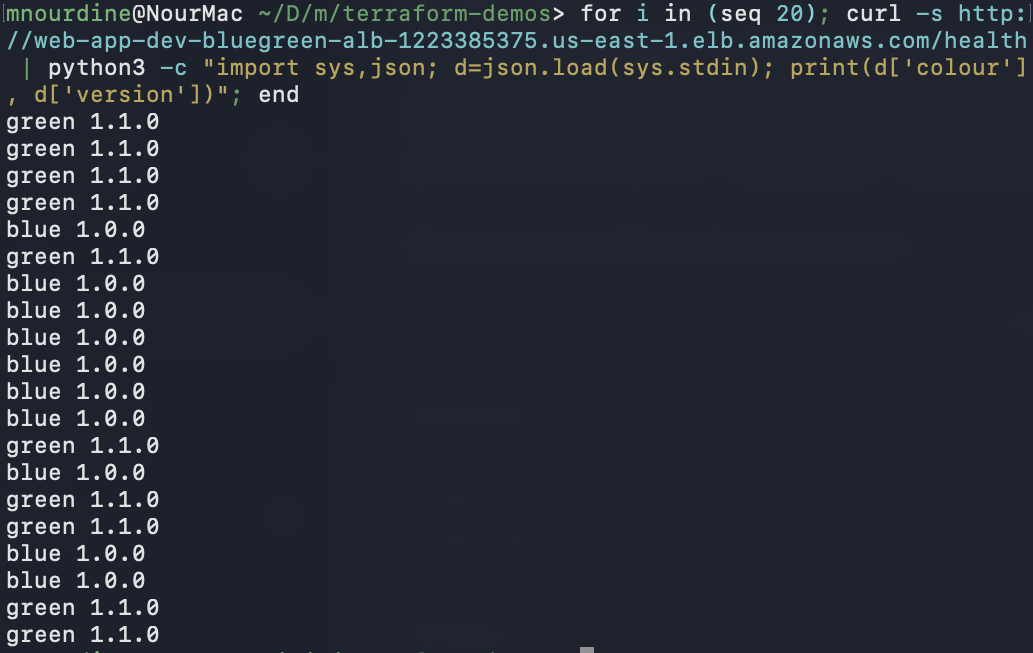
for i in (seq 20)
  curl -s http://web-app-dev-bluegreen-alb-1223385375.us-east-1.elb.amazonaws.com/health \
    | python3 -c "import sys,json; d=json.load(sys.stdin); print(d['colour'], d['version'])"
end
You will see blue 1.0.0 and green 1.1.0 mixed roughly 50/50 across the 20 requests.
Step 3 — complete the cutover to green:
terraform apply -var-file=terraform.tfvars -var="blue_weight=0" -auto-approve
Only green responds now. Any new endpoints (/version, etc.) are live.
Step 4 — instant rollback if needed:
terraform apply -var-file=terraform.tfvars -var="blue_weight=100" -auto-approve
The only thing that changes between each step is the weight value in the ALB listener — one number, tracked in state, fully auditable in the S3 version history.
Putting It Together: Updated Module (v1.4.0)
The Instance Refresh approach (Approach 1) is the right default for most teams — it's simpler than blue/green and handles the common case of "update the app code, roll it out safely."
Here's the updated ASG resource in the module:
# modules/web-app/main.tf

resource "aws_autoscaling_group" "web" {
  min_size                  = var.min_size
  max_size                  = var.max_size
  desired_capacity          = var.min_size
  health_check_grace_period = var.health_check_grace_period

  launch_template {
    id      = aws_launch_template.web.id
    version = aws_launch_template.web.latest_version
  }

  vpc_zone_identifier = data.aws_subnets.default.ids
  target_group_arns   = [aws_lb_target_group.web.arn]
  health_check_type   = "ELB"

  instance_refresh {
    strategy = "Rolling"
    preferences {
      min_healthy_percentage = var.min_healthy_percentage
      instance_warmup        = var.instance_warmup
    }
    triggers = ["launch_template"]
  }

  lifecycle {
    ignore_changes = [desired_capacity]
  }

  tag {
    key                 = "Name"
    value               = "${local.name_prefix}-web"
    propagate_at_launch = true
  }
}
New variables added to variables.tf:
variable "min_healthy_percentage" {
  description = "Minimum percentage of healthy instances during a rolling update."
  type        = number
  default     = 50
}

variable "instance_warmup" {
  description = "Seconds to wait after an instance passes health checks before replacing the next one."
  type        = number
  default     = 120
}
Tag and release:
git add .
git commit -m "feat: add instance refresh for zero-downtime rolling updates"
git tag v1.4.0
git push origin main --tags
Pull the New Module Version Before Deploying
After pushing v1.4.0, the module repo is updated — but the infrastructure repo still has a cached copy of the old version. Terraform does not automatically detect that a new tag exists. You have to explicitly tell it to re-download.
Update the source reference in your environment's main.tf to point at the new tag:
module "web_app" {
  source = "git::https://github.com/mohamednourdine/terraform-modules.git//modules/web-app?ref=v1.4.0"
  # ...
}
Then run terraform init -upgrade in the environment you want to update first — dev is the right starting point:
cd dev/
terraform init -upgrade   # re-downloads the module at v1.4.0
terraform plan            # confirm only the ASG instance_refresh block is being added
terraform apply
The -upgrade flag is required. Without it, terraform init uses whatever version is already cached in .terraform/ and ignores the updated ref. You won't see an error — it will silently continue using the old module.
Once dev looks correct, promote to staging and then prod the same way:
cd ../staging/
terraform init -upgrade
terraform apply

cd ../prod/
terraform init -upgrade
terraform apply
Each environment is a deliberate step. If the new instance_refresh config behaves unexpectedly in dev, you catch it before it reaches staging or prod.
Testing It
Update user_data in your main.tf — add a new endpoint, change the response message, anything visible:
@app.get("/version")
def version():
    return {"version": "1.1.0", "hostname": socket.gethostname()}
Apply and watch:
terraform apply -var="environment=prod"
While the apply runs, hit the ALB repeatedly and watch the response rotate:
watch -n 1 'curl -s http://<alb-dns>/health | python3 -m json.tool'
You'll see the hostname change as instances are replaced. You'll also see that responses from the old instances keep returning 200 throughout — no 502s, no gaps.
Lifecycle Rules Quick Reference
These three lifecycle settings come up together in almost every production ASG configuration:
# On the launch template
lifecycle {
  create_before_destroy = true
}

# On the ASG
lifecycle {
  ignore_changes = [desired_capacity]
}

# On the ASG — instance refresh
instance_refresh {
  strategy = "Rolling"
  preferences {
    min_healthy_percentage = 50
    instance_warmup        = 120
  }
  triggers = ["launch_template"]
}
| Setting | Without it | With it |
|---|---|---|
create_before_destroy |
Old template destroyed before new one exists — risk of ASG launch failure | New template always exists before old is removed |
ignore_changes = [desired_capacity] |
Terraform resets Auto Scaling's count on every apply | Auto Scaling manages count freely after initial deploy |
instance_refresh |
New template version applied only to future instances | Running instances replaced one by one, ALB keeps traffic flowing |
When to Use Each Approach
| Approach | When to use |
|---|---|
| Instance Refresh | Default for most teams. Simple, AWS-managed, no extra infrastructure. |
| Blue/Green | When you need instant rollback, or when the change is too risky to roll out incrementally. |
| Canary | When you're unsure about a change and want to validate it against a small real traffic slice before committing. |
These are not mutually exclusive. A common pattern is Instance Refresh for routine app updates and Blue/Green for major releases (new API version, database schema changes, config rewrites).
What Next?
Before today, a terraform apply on a user_data change was a partial deploy — some instances got the new code, some didn't, and there was no control over which ones served which users. Now the same command triggers a rolling replacement that keeps the ALB health checks passing throughout.
The blue/green setup is more infrastructure to maintain, but it makes the rollback conversation much simpler: "how long to roll back?" becomes "30 seconds" instead of "we need to re-deploy the previous version and wait for it to come up."
Next up: Terraform state operations — terraform import, terraform state mv, and what to do when state gets out of sync with reality.
This post is part of a 30-day Terraform learning journey.


💬 Comments
No comments yet. Be the first to share your thoughts!
Leave a Comment